Creator business
How to Host a Virtual Meet and Greet With Your Audience
A step-by-step plan for creators hosting a one-on-one virtual meet and greet, from the announcement and live queue to boundaries, recordings and follow-up.
A virtual meet and greet gives fans what a signing line or a backstage pass does: a few minutes of your full attention. If you are a creator who wants to host one, the simplest version is a set window of live one-on-one video calls that fans join through a queue. This guide walks through one event from start to finish: the reason, the format, your capacity, the announcement, the calls themselves and the follow-up.
It is written for creators planning a single session around a moment, such as a release, a milestone or a tour stop. If you want paid calls to become a regular part of your income instead, start with our guide to getting paid to video call fans by the minute.
What a virtual meet and greet looks like
Most virtual meet and greets take one of two shapes:
- One-on-one: fans wait in a line and meet you one at a time on a private video call. Every fan gets a real exchange, but the number of fans you can meet depends on the hours you give.
- Group: a room or webinar where many fans watch and a few get to speak. You reach more people at once, but most attendees spend the session watching rather than talking.
This guide focuses on the one-on-one format, because it is the closest to the in-person moment fans remember: their name, their question and your answer. If you are choosing where to host it, compare celebrity video call apps to see which support live conversations.
Step 1: Pick the moment and the promise
A meet and greet works best when it is tied to something your audience already cares about. Give it a reason and a clear end time.
- A release week, when fans want to talk about the new song, video or project they just saw
- A follower or anniversary milestone, to thank the people who have been around since the start
- A tour or event you cannot bring to every city, so fans who could not attend still get a moment with you
- A finale, launch or big announcement, while reactions are still fresh
Then write one sentence that tells fans what they get. For example: "Saturday from 6 to 8 p.m. Eastern, I am taking one-on-one calls to talk about the new album." A promise that specific helps fans decide whether to join, and it keeps you from implying that everyone who follows you will get a call.
Step 2: Choose how people will meet you
On BuzzStar, creators can offer more than one way to connect, so you can plan for the fans who can join live and the fans who cannot. The BuzzStar creator tools include:
- Live calls during your window. You open your queue during the time you have for calls, and fans meet you one at a time. You set a per-minute live call rate, and fans can review the price before they join.
- Scheduled calls. Fans suggest a call time, and you confirm it or suggest another. This suits fans in other time zones or anyone who cannot make your live window.
- Paid voice or video replies. Fans pay to ask you a question, and you answer in the reply format you offer, within the response window you set. It gives fans who miss the event a way to still get a personal answer.
You do not need all three. A first meet and greet can be a single live window. Add scheduled calls or replies only when you know you can keep up with them.
Step 3: Plan your time and capacity
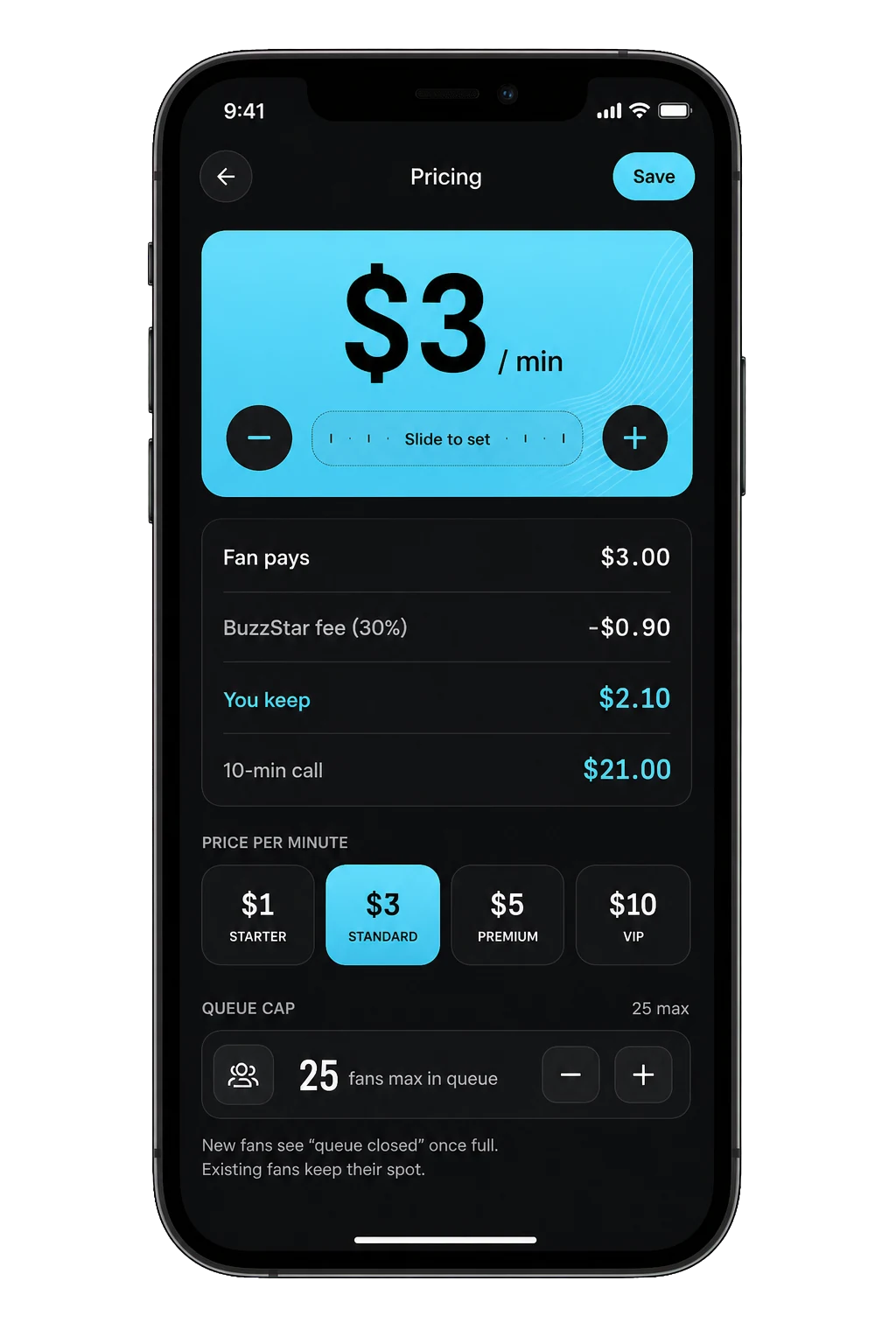
One-on-one meetings take real time, so do the math before you announce anything. On BuzzStar, fans choose from the call lengths offered for you, and each call has a selected length. Estimate how many conversations fit in your window, then leave room for changeovers and a short break.
Calls can also run long. During an active call, a fan can buy a paid time extension when one is offered, at the extension price shown in the call. That extra time is good for the fan in front of you, but it pushes back everyone else, because call extensions and queue movement change the estimated wait other fans see. Build that margin into your window instead of rushing the last few fans.
Set your rate with the same care. There is no single right number, and fans always see your per-minute rate before they join. BuzzStar's pricing page for fans explains how live-call rates, extensions and other paid options work, so link it when fans ask what a call will cost.
Step 4: Announce the event and share your link
Your creator link is the front door. Share it in your bio, posts and messages before the event so fans know exactly where to join. Fans can use your BuzzStar link to join your queue and take a live video call in their browser without downloading the app, although they still need to complete account and phone verification.
- About a week before: announce the date, the start and end time with your time zone, what the calls are about and your link.
- A day or two before: remind fans to create their account and verify their phone number ahead of time, so they are ready when you go online.
- On the day: post when you open your queue, and post again shortly before the last calls.
- Afterward: thank everyone and tell fans who missed it how else they can reach you.
Point first-timers to BuzzStar's guide to your first call. It walks fans through signing in, choosing a call length, reviewing the price, following the queue and joining with camera and microphone access.
Tell fans that the queue shows an estimated wait, not a guaranteed time. Calls ending, extensions and other queue changes can move a fan's turn, so ask them to keep the call flow open and watch for their turn.
Step 5: Set up your space and your boundaries
Treat your setup like a small stage. Before you open the queue:
- Test your internet connection, camera, microphone and lighting.
- Check what is behind you and keep your address, mail, documents and anything else personal out of frame.
- Keep water and a few talking points nearby for fans who are nervous and do not know where to start.
- Write down your boundaries: topics you will skip and what will make you end a call.
BuzzStar is safe for work and for adults 18 and up. The same safety and community guidance applies to fans and creators, and you stay in control of every call. You can end a call at any time from the call controls.
Step 6: Give every call a simple shape
A few minutes goes fast. A loose three-part shape keeps every fan's turn feeling complete:
- Greet them by name and ask what brought them to the call.
- Give them the moment: answer the question, react to what they share or celebrate the occasion they brought.
- Close warmly before time runs out, so the call ends on a thank-you instead of a cutoff.
If a fan asks about keeping the call, be accurate. On BuzzStar a call recording is a separate purchase, available only for eligible calls when both participants agree. Do not promise every fan a saved video, and do not screen-record calls yourself. BuzzStar's safety guidance asks people not to capture someone's call themselves or share call content without the other participant's explicit written permission.
Step 7: Follow up after the event
Your first meet and greet is also a test. Afterward, write down:
- How many fans joined the queue and how many calls you completed
- How long calls ran and how often fans added time
- The questions fans asked most
- Where fans heard about the event
Fans can leave a tip from the post-call receipt in the BuzzStar app, and you can check your wallet and payout status in the app. Creator fees and payout requirements apply, so read the BuzzStar Payment Terms before you plan around any number.
Then post a thank-you that does not reveal anything a fan shared privately, and let people who missed it know when your next window is or whether you are taking paid questions in the meantime.
Apply to become a BuzzStar creator
Frequently asked questions
What are tips for running virtual meet-and-greets?
Tie the event to a moment fans care about, announce a clear start and end time with your link, plan how many one-on-one calls fit in your window, test your setup and set your boundaries in advance, give each fan a short greeting, a real moment and a warm close, then follow up with the fans who missed it.
Can people join without downloading the app?
Yes. They can open your BuzzStar link, sign in, verify their number and join an available call in their browser. The BuzzStar app is available for iPhone and Android.
Can callers add time or leave a tip?
Where offered, callers can buy extra time at the displayed price and leave a tip from the post-call receipt in the app.
Can I offer scheduled calls and paid questions?
Yes. Creators can choose to offer scheduled calls and paid questions alongside live calls. For scheduled calls, fans suggest times and you confirm or suggest another. For paid questions, you choose voice or video reply formats, your price, and your response window.
How do I become a BuzzStar creator?
Download BuzzStar and complete the creator application in the app. Approved creators set their call rates and choose when to take calls. Visit Become a Creator for the application steps and available tools.
Straight answers
Frequently asked questions
What are tips for running virtual meet-and-greets?
Tie the event to a moment fans care about, announce a clear start and end time with your link, plan how many one-on-one calls fit in your window, test your setup and set your boundaries in advance, give each fan a short greeting, a real moment and a warm close, then follow up with the fans who missed it.
Do my fans need to download BuzzStar?
Fans can use your creator link to join your queue and take a live video call in their browser. They still need to complete account and phone verification. The BuzzStar app is available for iPhone and Android.
Can fans extend a call or leave a tip?
Paid time extensions let fans add time to an active call at the displayed extension price. Fans can leave a tip from the post-call receipt in the app.
Can I offer scheduled calls and paid questions?
Yes. Creators can choose to offer scheduled calls and paid questions alongside live calls. For scheduled calls, fans suggest times and you confirm or suggest another. For paid questions, you choose voice or video reply formats, your price, and your response window.
How do I become a BuzzStar creator?
Download BuzzStar and complete the creator application in the app. Approved creators set their call rates and choose when to take calls. Visit Become a Creator for the application steps and available tools.
Published October 19, 2026. Last updated November 22, 2026. Features, prices, and availability can change, so confirm current details in the relevant app before paying.
Make the next scroll a conversation.